



Google Search Console Beginners Guide: How to Use It for SEO in 2026
Most business owners and bloggers in India have heard of Google Search Console. Very few have actually opened it. And almost nobody is using it to its full potential.
That’s a problem — because Google Search Console is the only tool that shows you exactly how Google sees your website. Not estimates, not third-party guesses. Real data, directly from Google, for free.
If you’re investing time or money into SEO and you’re not using Google Search Console, you’re essentially driving without a dashboard. You can still move forward, but you have no idea how fast you’re going, what’s broken, or where you’re headed.
This guide covers everything a beginner needs to know — what GSC is, how to set it up, and exactly which reports to use to improve your rankings in 2026.
What Is Google Search Console?
Google Search Console — previously called Google Webmaster Tools — is a free platform provided by Google that helps you monitor, maintain, and troubleshoot your website’s presence in Google Search results.
It tells you which keywords your site ranks for, how many people see and click on your pages in search results, which pages have technical errors, whether your site is mobile-friendly, how fast your pages load, and whether Google can crawl and index your content properly.
No other tool gives you this level of direct insight into how Google actually interacts with your website. Every SEO agency in India uses it. Every serious blogger uses it. And you should too.
How to Set Up Google Search Console
Setting up GSC takes less than 10 minutes. Here’s exactly how:
Step 1 — Go to search.google.com/search-console and sign in with your Google account.
Step 2 — Click “Add Property” and enter your website URL. Choose the URL prefix option — it’s simpler for most websites.
Step 3 — Verify ownership. The easiest method for WordPress sites is the HTML tag method — copy the meta tag Google gives you and paste it into your website’s header section using a plugin like Rank Math or Yoast. For other sites, your developer can add it directly to the code.
Step 4 — Wait 24 to 48 hours for data to start populating. GSC doesn’t show historical data before verification, so the sooner you set it up, the more data you’ll have to work with.
Step 5 — Submit your sitemap. Go to Sitemaps in the left menu, enter your sitemap URL (usually yourwebsite.com/sitemap.xml for WordPress sites), and submit. This tells Google exactly which pages exist on your site and should be indexed.
The Most Important Reports in Google Search Console
GSC has many sections but beginners only need to focus on a handful of key reports to get real SEO value.
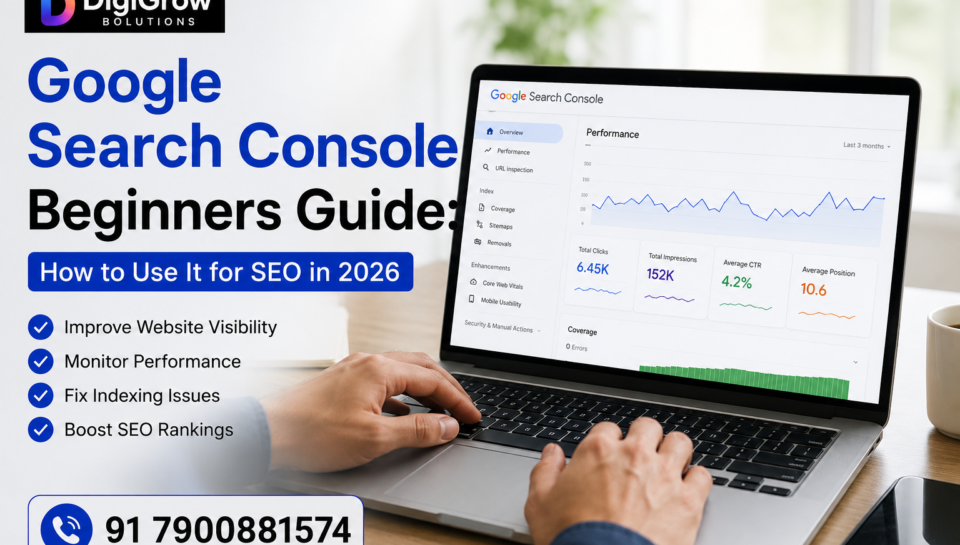
Performance Report — Your Most Important Starting Point
This is the report you’ll use most. It shows you:
| Metric | What It Means |
|---|---|
| Total Clicks | How many times people clicked your site from Google search |
| Total Impressions | How many times your site appeared in search results |
| Average CTR | Percentage of impressions that resulted in a click |
| Average Position | Your average ranking position across all keywords |
Below these summary numbers, you’ll see a full breakdown by queries — the actual keywords people used to find your site — along with pages, countries, and devices.
How to use this report for SEO:
Filter by queries and sort by impressions. Look for keywords where you’re getting a high number of impressions but a low CTR. This means Google is showing your page for that search, but people aren’t clicking. The fix is usually improving your title tag and meta description to be more compelling.
Next, look for keywords where you’re ranking between position 8 and 20. These are your quickest wins — pages close to page one that need a targeted content improvement to move up. Update the page with better content, stronger keyword usage, and more helpful information, and you’ll often see ranking movement within a few weeks.
URL Inspection Tool — Check How Google Sees Any Page
Type any URL from your website into the search bar at the top of GSC and it shows you exactly what Google knows about that page — whether it’s indexed, when it was last crawled, any issues found, and what the rendered version looks like to Google.
This is the first thing to check when a page isn’t appearing in search results. If it shows “URL is not on Google,” you can request indexing directly from this tool — which tells Google to crawl and index the page immediately rather than waiting for it to be discovered naturally.
Coverage Report — Find Pages With Indexing Problems
The Coverage report shows you which pages on your site are indexed, which have errors, and which have been excluded and why.
Pay attention to pages with errors — these are pages Google tried to crawl but couldn’t access properly. Common errors include 404 pages (pages that no longer exist), redirect errors, and server errors. Each error represents a page that isn’t contributing to your rankings when it should be.
The excluded section often includes pages that are blocked by your robots.txt file or marked as noindex. Review this regularly to make sure important pages aren’t accidentally excluded from Google’s index.
Core Web Vitals Report — Your Speed and Experience Score
This report shows how your pages perform on Google’s Core Web Vitals metrics — the speed and user experience signals that directly affect rankings. Pages are categorised as Good, Needs Improvement, or Poor.
Any pages showing as Poor need immediate attention. Click into the report to see which specific metric is failing and which URLs are affected. This data feeds directly into your website speed optimisation priorities.
Mobile Usability Report — Critical for Indian Audiences
Given that the majority of internet users in India browse on smartphones, this report is particularly important. It flags any pages where the mobile experience is broken — text too small to read, clickable elements too close together, content wider than the screen.
Every issue flagged here is costing you both rankings and customers. Mobile usability problems are usually fixable by your developer within hours once identified.
Links Report — See Who Is Linking to You
The Links report shows your external backlinks — which websites are linking to yours — and your internal links — how pages within your site link to each other.
Use the external links section to see which of your pages have the most backlinks pointing to them. These are your strongest pages from an authority perspective. Make sure they link internally to other important pages on your site to pass that authority across.
The internal links section shows which pages are most linked to within your own site. If an important service page has very few internal links pointing to it, add links from relevant blog posts and other pages to strengthen it.
How to Find Your Easiest SEO Wins in GSC
Here is a simple process you can repeat every month to consistently improve your rankings using only Google Search Console:
Win 1 — Fix low CTR pages
In the Performance report, filter for pages with more than 100 impressions but a CTR below 3%. Rewrite the title tag and meta description of each page to be more specific, more benefit-focused, and more compelling. Monitor CTR improvement over the following 4 weeks.
Win 2 — Push position 8 to 20 keywords to page one
Filter queries by average position between 8 and 20. For each keyword, open the page that ranks for it and improve the content — add more depth, answer related questions, improve the heading structure, and add internal links. These pages are already in Google’s consideration set and need only a small push.
Win 3 — Fix indexing errors immediately
Check the Coverage report weekly. Any new errors should be investigated and fixed within days. A page with an indexing error is completely invisible on Google regardless of how well it’s optimised.
Win 4 — Request indexing for new content
Every time you publish a new blog post or page, use the URL Inspection tool to request indexing. This gets new content into Google’s index significantly faster than waiting for Google to discover it naturally.
How Often Should You Check Google Search Console
| Task | Frequency |
|---|---|
| Check for coverage errors | Weekly |
| Review performance report for new keyword opportunities | Monthly |
| Audit low CTR pages and rewrite meta tags | Monthly |
| Check Core Web Vitals for new issues | Monthly |
| Review new backlinks in Links report | Monthly |
| Submit new content for indexing | Every time you publish |
FAQs
1. Is Google Search Console completely free to use?
Yes, Google Search Console is 100% free with no paid tiers or feature limits. Every feature described in this guide is available to any website owner at no cost. All you need is a Google account and ownership of the website you want to verify.
2. How long does it take for Google Search Console to show data after setup?
Basic performance data typically starts appearing within 24 to 48 hours of verification. However, the Performance report shows data going back only to when your property was first verified — GSC does not provide historical data from before your setup date, which is why setting it up early matters.
3. My website has been live for months but GSC shows very few impressions. What does that mean?
Low impressions usually mean Google either hasn’t indexed many of your pages, your pages aren’t ranking for any keywords yet, or your content doesn’t match what people are actually searching for. Start by checking the Coverage report to confirm your pages are indexed, then review your keyword targeting and content quality.
4. What is the difference between Google Search Console and Google Analytics?
Google Search Console shows you how your website performs in Google Search — keywords, rankings, click-through rates, indexing status, and technical errors. Google Analytics shows you what happens after visitors arrive on your site — traffic sources, user behaviour, time on page, and conversions. Both tools are free and complement each other. GSC tells you how people find you; Analytics tells you what they do when they get there.
5. Can Google Search Console help me recover from a Google penalty?
Yes. If your site has been manually penalised by Google, you’ll receive a notification in the Manual Actions section of GSC explaining exactly what the violation is. Once you’ve fixed the issue, you can submit a reconsideration request directly through GSC. Algorithmic penalties don’t appear as manual actions but the Performance report will show a visible drop in impressions and clicks around the date of the algorithm update.
6. Do I need Google Search Console if I already use Rank Math or Yoast SEO?
Yes. Rank Math and Yoast help you optimise your content on the page — they don’t show you how Google is actually ranking or crawling your website. GSC provides real data directly from Google that no third-party plugin can replicate. Many SEO plugins actually connect to GSC to pull in ranking data, which shows how central GSC is to the entire SEO workflow.
Final Thoughts
Google Search Console is the closest thing to a direct conversation with Google about your website. It tells you what Google sees, what it struggles with, what people are searching to find you, and exactly where your biggest opportunities are hiding.
Most small business owners and bloggers in India set it up once and never open it again. The ones who check it regularly — fixing errors as they appear, improving underperforming pages, and acting on keyword data every month — are the ones whose websites grow steadily over time while their competitors wonder why nothing is working.